
Today is the last lesson, where we'll talk about web versions and email testing. We'll also give you a useful checklist. And finally, we'll move on to a final project that pulls together everything we've learned across nine lectures.
The web version of an email
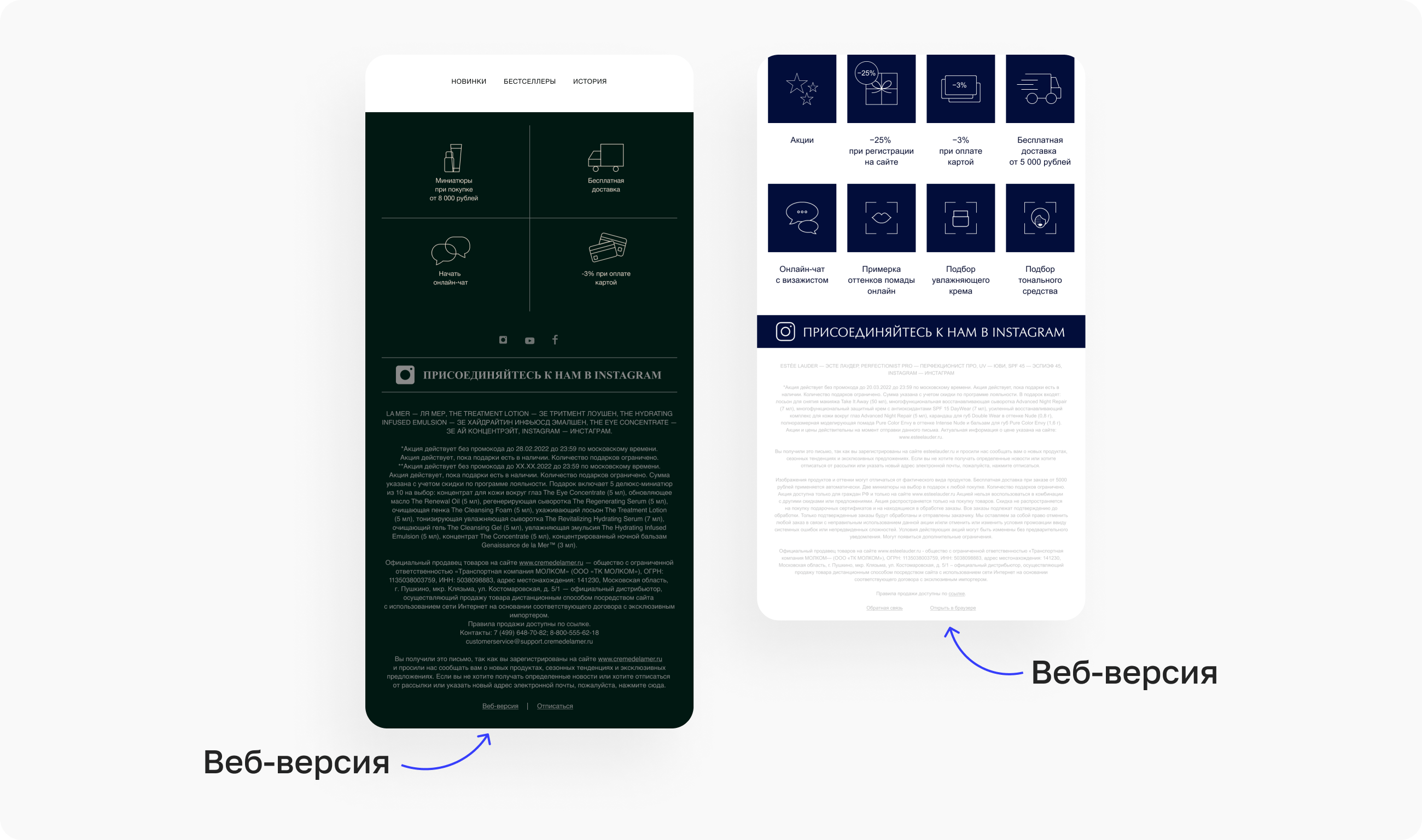
A web version is the original email as it opens in a browser. Beyond that, it's the same coded layout. Adding a link to the web version is a must-have, and here's why.
If images fail to load, fonts shift, or something else goes wrong, the web version will still open correctly. It also makes it easy to share the email by simply sending a link, one where every element is clickable and GIFs work as intended.
It gets labeled in different ways — sometimes just "web version," sometimes with a lead-in like "If this email doesn't display correctly, click here."

How to test emails
First and foremost, always check the newsletter's copy for typos and mistakes — the copywriter might have rushed, and the designer might not have noticed. Litera5 can help with this. Next comes typography — proper dashes, no orphaned prepositions, nice-looking quotation marks. Typograf handles this better than most tools.
Now on to the email's HTML code. It's important that every element and tag is properly closed — you can check this three ways:
- In whatever code editor you use. Most programs flag errors right away.
- With any HTML validator — it'll analyze your code for errors for free. For example, the Markup Validation Service.
- With various browser plugins or extensions. We recommend installing the HTML Validator extension in Chrome to check code right from the developer menu.
All styles need to be inlined — written directly into the email's code. The Compressor we use ourselves can help with this — it inlines everything and minifies it (shrinks the source code's size).
Images we prepared at 2x size for Retina tend to be heavy — it's better to shrink them so the email opens faster. Use the tried-and-true TinyPNG.
Next up — renders. A render is a visual example (usually a screenshot) of how the email displays on a given device. You can immediately spot adaptation errors — a clipped image, shifted text, and so on.
Most coders use Litmus or Email on Acid for renders, but as of 2022 these could become unavailable to Russian users. So we recommend turning to the Russian equivalent — Letteros.
What is Letteros
It's a modular email editor where you can assemble newsletters from ready-made blocks. In other words, a newsletter builder that automates design and coding, letting you quickly put together a newsletter without a coder, starting from a template.
Letteros helps you test how a newsletter looks without needing dozens of extra test inboxes: the platform runs emails through 100+ mail services, browsers, and smartphone models — you just need to check the boxes you need:

The service helps confirm the layout hasn't broken anywhere and everything works as it should — the platform shows exactly how the email will look on any given device:

By the way, Letteros is a pleasure to work in: it has a code inliner and minifier, spell check and a typography tool, an image optimizer — these and other services are built right into the platform. It's convenient because you can do everything in one place without switching to other services.
What else Letteros can do:

To start using Letteros, all you need to do is sign up. Then go through a short screencast tutorial:

In essence, here's how the service works:
Another advantage of the platform: it's a fully Russian service with servers located in Russia, so your data stays put. And you can pay in rubles by invoice or card — whichever is more convenient.
That covers renders — let's move on.
Pixel-perfect coding
Even before an email is sent, the client already knows what the mockup looks like. And if what they get at the end doesn't match what they expected, the client might simply reject the work.
That's why coders often use the pixel-perfect technique. The idea is to achieve an exact match between the coded layout and the original design.
Why does this matter? For example, a designer might have made a mistake in the mockup and shifted one of the icons. Pixel-perfect checking catches this kind of issue and helps fix it.
Pixel-perfect coding requires certain plugins or scripts. We use the PerfectPixel by WellDoneCode extension for Chrome, but there are others too:
— Pixel Perfect Pro for Google Chrome;
— X-Precise;
— pixLayout and others.
They all work in roughly the same way: you upload the design mockup and compare it against the final coded version.
Test inboxes
It's also worth mentioning that every self-respecting coder keeps test addresses across different mail systems. This lets them double-check their own work — see how a newsletter looks in Outlook, how it displays in Yandex Mail, and whether anything broke in Gmail.
That wraps up testing. And, as it happens, the whole course 🙂
You've got 9 lessons behind you now, and you know all the details and nuances — from HTML basics to testing emails. But you'll need plenty of practice to sharpen the knowledge and skills you've gained. It's going to be interesting!
As a bonus, we've put together a short checklist for testing email coding for you. You can make a copy (File → Make a copy) and check yourself after every newsletter you build.
📱 Head over to Letteros and start building emails!