
In the first lesson, we already touched on the differences between email coding and website coding. But to understand the specifics of coding emails, you first need to understand the structure of a newsletter. Let's start there.
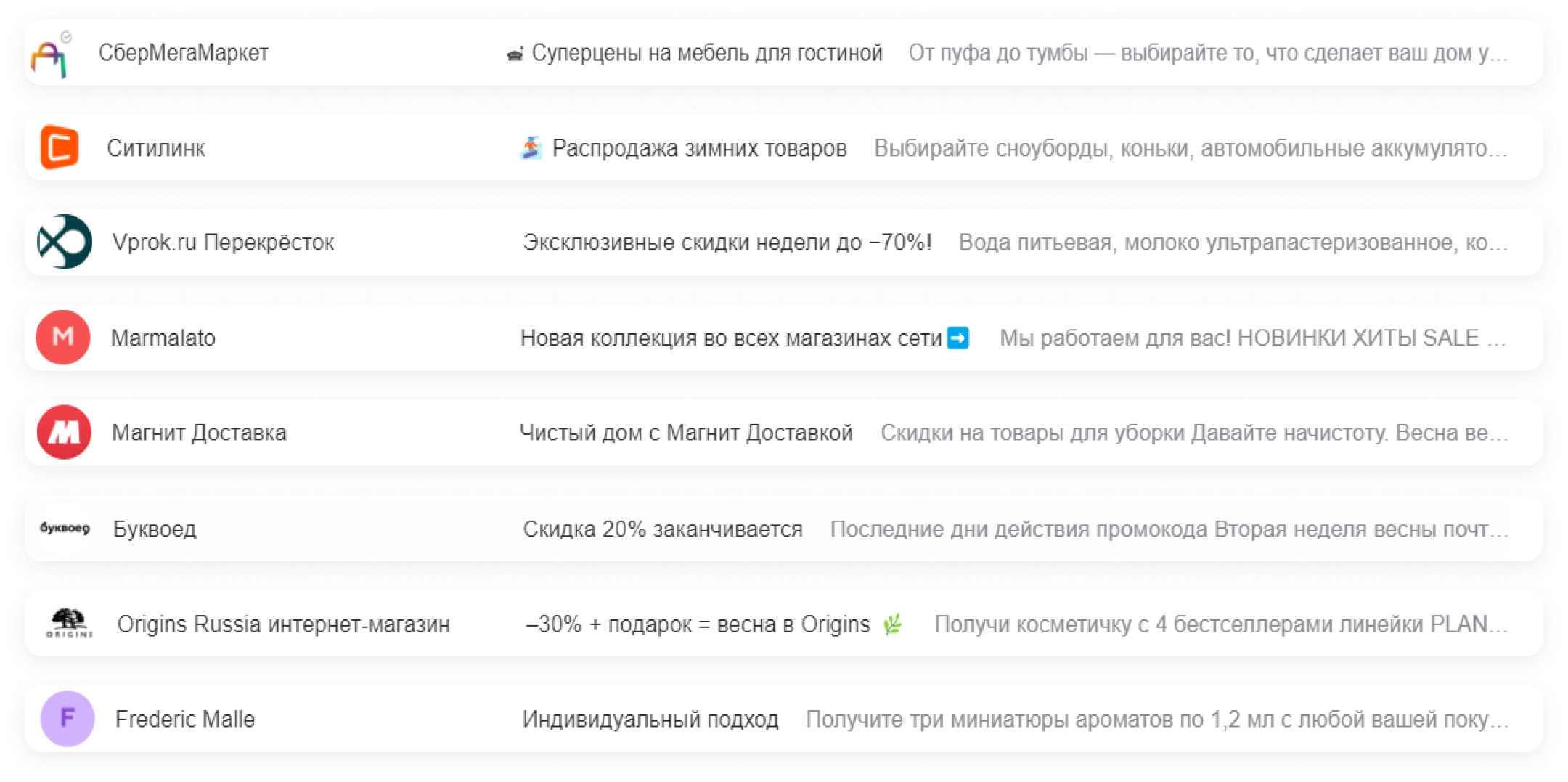
We're sure you've received a newsletter from a brand at least once [otherwise, what are we even doing here? 🙂]. Think back — what do we see first? The subject line and preheader:

We look at them and decide whether we want to open the email or not. So we can say that interaction with a newsletter begins even before it's opened.
Got a great subject line? Click — and the email is open. This is where the structure begins:

At the top is the header. It usually contains the brand logo or the site menu. The header doesn't change from email to email [to keep the newsletter's identity consistent], so it should be stable and recognizable:

Next comes the main banner. It usually looks like an image with text and a button. Almost always an eye-catching illustration and a headline that carries the main offer. That's because we have literally one second to hook the reader:

The header + banner combo can be called the newsletter's “first screen”, since it's the first thing a subscriber sees when opening the email. Especially on mobile, where all the other blocks move further down.
Next is the email body. It usually consists of blocks [headings, text, benefits, products, etc.]. The content varies depending on the type of newsletter and the designer's idea.

At the bottom is the footer. It contains important information: links to the brand's social media, contact details, a disclaimer, an unsubscribe link, and a web version link.
Like the header, it usually doesn't change from email to email.

It's also worth mentioning that you can't send emails without an unsubscribe link [here's our helpful article on this topic]. The web version, meanwhile, lets you view the email as a web page if it displays incorrectly.
Rendering engines and security
Now let's talk in a bit more detail about why the same email can look different on different devices. Here's an example of how it looks in mail.ru and gmail.com:

In one place a font might not display, in another links get underlined — it all depends on the email client's rendering engine.
Email client — a program designed for receiving, writing, sending, and storing email messages. It can be a desktop, mobile, or web application.
Email clients: Microsoft Outlook, Thunderbird, Mailbird, TouchMail, The Bat!
Email provider — a service that has many email clients and offers the ability to set up a mailbox with it.
Email providers: Mail.ru, Gmail, Rambler, Yandex, Outlook.
Most clients and providers run on four engines:
They're all developed by different teams, so element rendering differs between them too. To make sure an email displays correctly across different engines, the coder needs to account for this. Their job is to consistently apply various hacks [workaround technical solutions] for each engine.
Here's a table to help you understand the differences between engines:

Oddly enough, internet scammers are another reason why email coding differs from website coding. That's because many people view their mail through their email provider's web interface. Providers try to protect subscribers from having their personal data stolen, phishing, and other scammer activity — and to do this, they strip out potentially dangerous code fragments.
Usually it's JavaScript elements and certain CSS properties that get stripped — for example, the position property, which allows you to change element positioning and replace interface elements with your own buttons.
Yes, all of this might sound a bit intimidating, but only at first. In reality, it's all pretty simple. And once you know the specifics, you'll be able to code emails that look good everywhere.
Technical limitations
For many people, email coding can seem like real hardcore work. But if you're a fearless ninja and want to create a unique, non-template design, building an email can become a new meditative process for you. But for that, you'll need to know the specifics of newsletter coding.
The <style> tag
There's a <style> tag that defines CSS styles for an HTML document — fonts, colors, the placement of individual blocks.
However, this tag isn't supported by all email clients. That's why media queries [CSS rules that let you control element styles depending on a device's technical parameters] won't work everywhere either.
Media queries and the <style> tag are usually not used in email coding. But why not take advantage of the email clients that do support media queries?
It's important to know how to “groom” emails with media queries: in Yandex, for example, they won't work, while in other email clients they can help achieve a much better-looking email.
Shorthand styles
Coders strive to make their code compact and bring it to a “clean” state. Below, take a look at how the same code can look.

To achieve this “cleanliness”, you don't need to call in a cleaning crew. Coders have several useful tricks in their arsenal for this, including shorthand CSS styles. Using them lets you write more compact stylesheets, saving time and effort. Except this doesn't apply to emails.
Since not all email clients support the <style> tag, all styles need to be inlined — written out in full form in the attribute. Compare the two variants:

We need the second one. By the way, you can use the inliners you already know to inline styles and “translate” shorthand into full form.
Fonts
You can only use standard web-safe fonts in newsletter copy. Non-standard fonts could technically be used via the @font-face rule, but it only works in iOS, Google Mail, and Android 4 [Gmail].
So fonts are one area of email coding where it's better not to stray from the classics. Here's the standard set of web-safe fonts you can use everywhere:
font-family: Arial, Helvetica, sans-serif;
font-family: Arial Black, Gadget, sans-serif;
font-family: Georgia, serif;
font-family: MS Sans Serif, Geneva, sans-serif;
font-family: MS Serif, New York, sans-serif;
font-family: Tahoma, Geneva, sans-serif;
font-family: Times New Roman, Times, serif;
font-family: Trebuchet MS, Helvetica, sans-serif;
font-family: Verdana, Geneva, sans-serif;
If you connect other fonts, remember that this will only work in email clients that support the <style> tag.
But there's a workaround: to make non-standard fonts display correctly on all devices, you can code them as images. But this technique only works for headings. That's because some users view their mail with images turned off. If you code all the email's paragraphs as images, readers will just see an empty email.
However, this isn't recommended: blocks coded as images won't adapt to the mobile version — they just shrink to fit the smartphone screen's width. We'll cover this in more detail in upcoming lessons 🙂
HTML code size
Google's email client truncates emails whose HTML code exceeds 100 KB. Instead of the rest of the content, users will see the phrase “Message clipped” and a link to the full text. It looks like this:
To keep emails from being clipped, you need to shrink their code down to 100 KB. You can use a code minifier for this — it compresses the code into a single line and removes all unnecessary characters. This can save around 20% in kilobytes.
Images
For all images in an email to display correctly, you can only use three formats — jpg, gif, and png. The first is the standard one — for photos or when the image has no transparent background. The second is for when you need an element with a transparent background, or for simple graphics with a small set of colored elements. If you want the images in your email to display correctly, avoid other formats.

There are no technical limits on image file size in emails. Images aren't loaded directly into the email — they're hosted on a server, so their size isn't especially critical for us. But on mobile internet, “heavy” images will take a long time to load. To avoid making clients wait, there's an unwritten rule: banner images should weigh no more than 150 kilobytes, and all others no more than 50.
You can use special services to compress an image to the right size. For example, Optimizilla and TinyPNG.
We'll come back to images later — we'll cover them in more detail in one of the upcoming lessons.
JavaScript
JavaScript is a full-fledged programming language that lets you create dynamically updating content, manage multimedia, and animate images. This language is executed by the browser itself.
Email clients don't let coders use JavaScript. But there's an ace up the sleeve — AMP technology [Accelerated Mobile Pages], which helps embed interactive elements in emails. Many believe AMP emails are the future, since this technology makes emails nearly as functional as websites.
In these kinds of newsletters, you can browse products, take part in polls, leave comments, place an order, and much more. At the same time, you can't insert your own JavaScript into AMP emails, which means they're safe. Here's a helpful article that will introduce you to the technology in more detail.
But AMP doesn't work everywhere yet: Gmail, Mail.Ru, and Yahoo! Mail have already adopted the technology, while Yandex hasn't yet, and AMP functionality won't display in its mail services. Because of this, two versions of an email are usually made now — one with AMP functionality, and another, almost identical, without it.
Polls
Emails sometimes include polls, and these contain checkboxes, tick marks, input fields, and many other details that aren't supported in coding. How do you make them?
The first way is an NPS survey. This is a survey with a single closed-ended question in the style of “Rate our work from 1 to 10”. In the results, the creators see the score subscribers gave their work.

The second way works if we're asking clients open-ended questions or want to ask several closed-ended questions at once. A link to a survey on the website is attached to a button in the email. The user clicks the button, goes to the website, and fills out the survey there. You can create it, for example, in Google Forms.
And the third option is something in between the first two. We insert a question into the email, and any answer sends the user to the website. For example, a question for a pet store: “What kind of pet do you have?” with the options “fish”, “dog”, “hamster”, and “cat”. On click, the user goes to the website, where the answer to the first question is already filled in, but there are still a few unanswered ones.
Adding to calendar
Want a subscriber to add an event from your newsletter to their calendar? Here's how it works:
- The subscriber receives a newsletter announcing the event.
- They click the [or link] “Add to calendar” button.
- The calendar automatically opens and offers to add the event.
For this to work, you need to make the calendar public, open access to the event for everyone, copy the link, and send it to users. This works with all popular calendar types: Google, Yandex, Yahoo!, Mail.ru, Outlook, or iOS. And this article has a detailed guide on how to do it.
Countdown timers
A countdown timer is a great tool for reminding the client that time is ticking and they need to hurry:

Time-limited offers push buyers toward impulse purchases. It's just important that the timer works correctly — meaning that when the email is opened, the script should read the subscriber's local time and show the real hours and minutes remaining until the promotion ends.
You could insert a GIF, but it will look off. It's better to use a script — either your own, if you can, or a service. For example, Sendtric or MotionMail.
So now you know the basics of HTML coding and the nuances of technical limitations, and you understand how email coding differs from website coding. Let's move on to the most interesting part — in lesson three we'll be “dissecting” an email 🙂
💡 Letteros will automatically take care of compatibility! Check out how it works in the editor.