
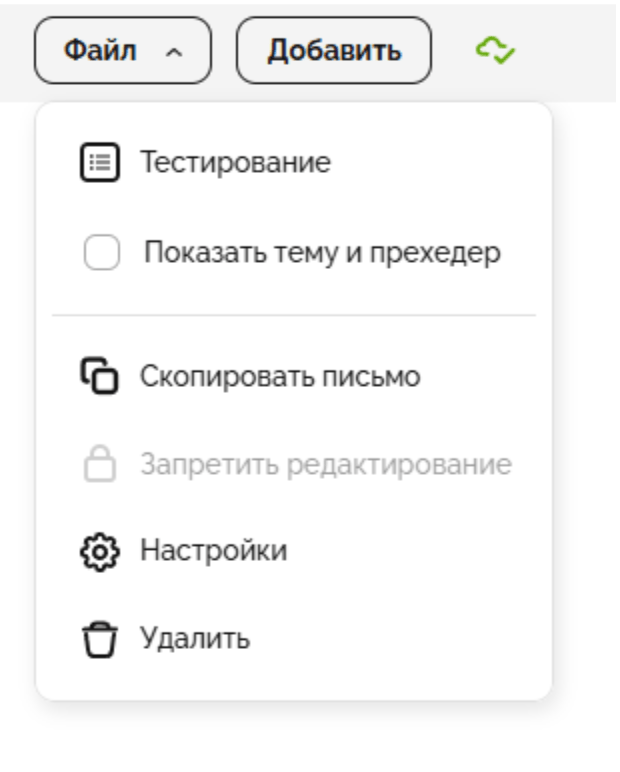
In the "Testing" section, you can check how your email will display across different email clients, platforms, and devices. This helps you spot rendering differences ahead of time — for example, in Outlook, Gmail, or mobile apps.
To open this section, go to the editor menu: File → Testing.

Web version of the email
The web version lets you open the email as a standalone web page. It's a convenient way to show the email to colleagues or approve the design without sending a test email.
If the web version isn't published, only members of your project can see its preview. If it's published, anyone with the link can open it.
How to use it:
1. Toggle "Web version" at the top of the panel.

2. Once enabled, click the icon to the right to open the web version in a new tab.
3. Below is the "Recipients" block — here you can specify the email addresses the test email will be sent to. You can add recurring recipients for testing; they load automatically from the project settings.

4. Click "Send" to receive the email in a real inbox and check how it displays in your email client.
The web version helps you check the email in a browser, while a test send lets you confirm it displays correctly in email services.
Renders
Below in the panel is the "Renders" block. It lets you see how the email displays across 100+ virtual email clients.
It also shows service information about the email: HTML file weight, total image weight, and number of email exports — these parameters help you assess how optimized and "heavy" the email is before sending or exporting.

To open renders:1. Click the "Select devices" button.
2. A window will open where you can choose:• a platform (Outlook, Apple Mail, mobile apps, etc.)• an email client (Mail.ru, Yahoo, Gmail, etc.)• presets (build your own device list).
Select the devices you need and click "Run renders" to get screenshots of how the email renders in the chosen clients.

Audit and spam check
In the top right corner of the "Testing" section, there are two additional buttons:
• Audit — checks the email against Letteros' internal checklist.
• Spam check — estimates the likelihood of the email landing in spam.

After the analysis, each tool shows a brief report with any issues found and tips for improvement.
Next section — Exporting an Email