
Integrations let you connect Letteros to external email marketing services. Once connected, you'll be able to export templates and emails via API.
Where to find integrations
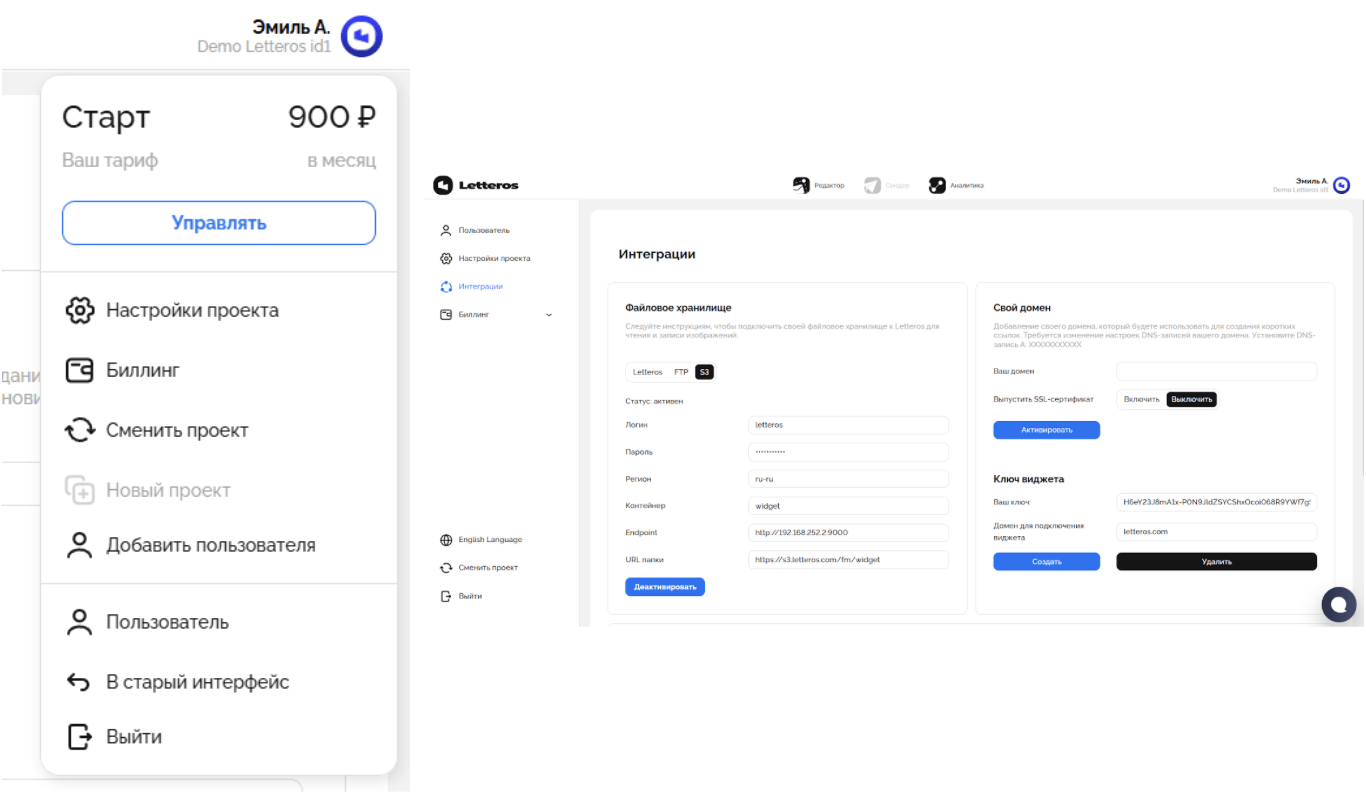
Integrations are set up in the project's account settings:1. Click your profile avatar in the top right corner.2. Select "Project settings".3. In the left menu, open the "Integrations" section.

This page includes:
• a block for file storage and domain settings
• widget settings
• and below that — the CDP & ESP block, where you connect external email and CDP services.

The CDP & ESP block
The CDP & ESP block displays available integrations as service cards. On this panel, you can:
• see which services Letteros supports
• open the settings for a specific service,
• connect a new integration• and, if needed, request a new service via the "Request an integration" button

How to connect an integration
To connect an external service to Letteros:
1. Go to the "Integrations" section in the project settings.
2. In the CDP & ESP block, click the card for the service you need.
3. An integration setup form will open. The fields in this form vary depending on the service you choose: some only require an API key, while others also need a project ID, domain, sender email, and other parameters.For example, the Mailganer form contains two required fields:
• API key — you can get it via the "Get API key" link in the top right corner of the window, or from your Mailganer account.• Sender email — the address used as the sender for campaigns, which must be configured in your Mailganer account.3. Fill in the form fields with the current data.4. Click "Connect" to save the integration.

After saving, Letteros will check that the data is correct. If everything checks out, the integration will become active and available when exporting emails.
Using a connected integration during export
Once an integration is set up, you can use it directly from the email editor.
1. Open the email in the Letteros editor.2. Click the blue export button in the top right corner (the "send" icon next to the "Save" button).
3. The export menu will open. On the left side of the "Export to platform" block, you'll see your connected services (for example, Mailganer, Sendpulse).
4. Click the name of the service you need to export — the email will be sent to the selected platform via API as a ready-made template.

If the service you need isn't in the list
If you didn't find your ESP or CDP among the available integrations, the CDP & ESP block has a "Request an integration" button.
Use it to request a new service — the Letteros team will get in touch with you to work out the details.

Next section —Letteros support