
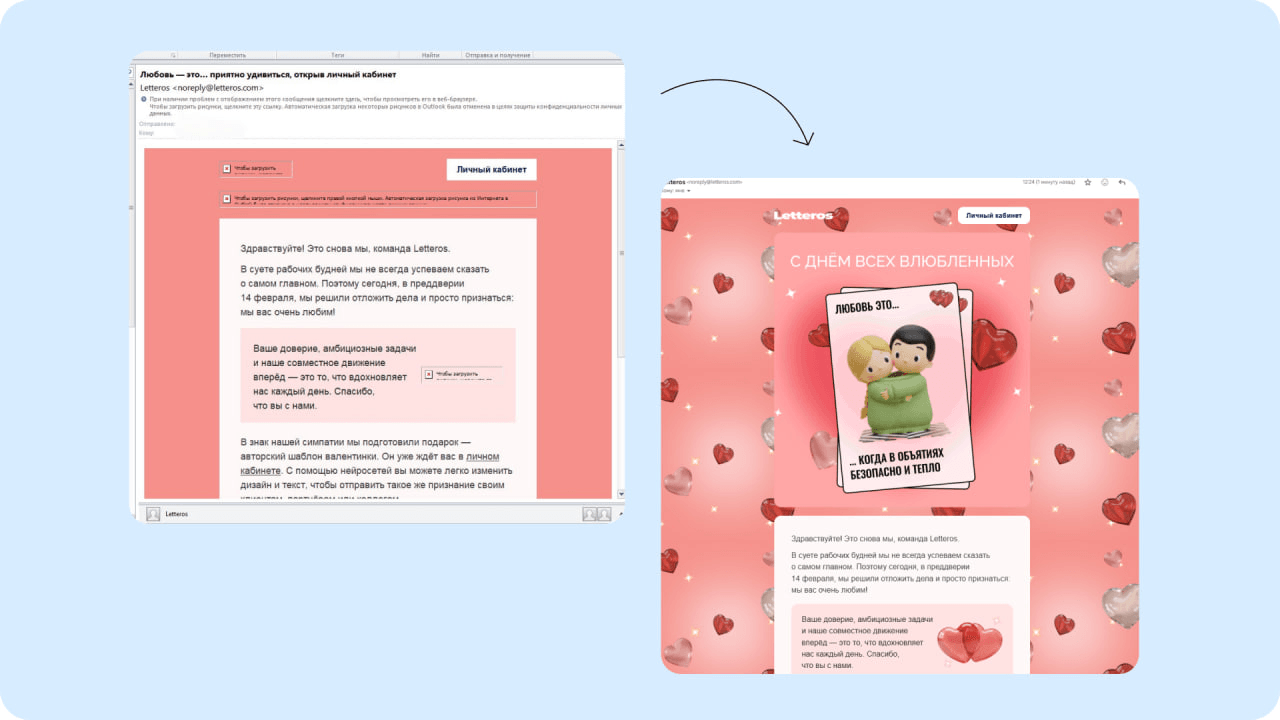
A campaign that renders correctly in Gmail or Apple Mail often loses its structure in desktop versions of Outlook. Typical symptoms: shifted columns, disappearing backgrounds, and brand fonts getting replaced with system ones (Times New Roman or Arial).
The cause isn't code errors — it's the specifics of the email client's rendering engine. In this article, we'll break down Outlook's technical limitations and methods for building cross-platform emails.

Why Outlook interprets HTML differently
While most email services use modern browser engines (WebKit or Blink), Outlook 2013–2021 on Windows is built on the Microsoft Word rendering engine.
Word doesn't support modern web standards like Flexbox, CSS Grid, or transforms. It works with a limited set of CSS properties and attributes, roughly matching the HTML level of the late 90s.
Important: This issue only applies to the classic Windows desktop app. Outlook's web interface and the macOS version use modern engines and render layouts without distortion.
7 critical coding limitations in Outlook
1. No support for background images via CSS
The background-image property is completely ignored. To display backgrounds, you need to implement VML (Vector Markup Language) — a proprietary Microsoft markup language. Without VML containers, the background image gets replaced with a solid fill color.
2. Ignoring Flexbox and Grid
Outlook doesn't support modern element positioning methods. Using display: flex causes all blocks to stack vertically. Solution: classic table-based coding (<table>), which provides a rigid frame for the email.
3. Blocking external web fonts
Fonts loaded via @font-face or external links don't load. To preserve visual hierarchy, you need to specify a fallback font stack, listing safe system options (Arial, Helvetica, Georgia).
4. Ignoring the max-width property
In classic versions of Outlook, the max-width property on containers doesn't work, causing the email to "stretch" across the entire screen width. Solution: use a fixed pixel width via the HTML width attribute.
5. Inconsistent padding handling on images
Internal padding on the <img> tag renders inconsistently. It's better to set padding on the table cell (<td>) that contains the graphic content.
6. No support for shadows
Shadow effects on buttons and blocks don't render. Elements will look flat. If a shadow is a critical design element, bake it into the image itself.
7. No support for border-radius
Rounded corners aren't supported in the Windows desktop versions. Buttons and cards will always have sharp corners. The only way to keep rounded corners is to use graphic elements instead of CSS styles.
Testing for Outlook compatibility
Since the standard preview in builders uses a browser engine, it doesn't give an accurate picture. Professional testing methods include:
- A direct test: sending the email to real accounts with Outlook 2016/2019 installed.
- Specialized software: Litmus or Email on Acid (automatic screenshots across different client versions).
- Built-in rendering in Letteros: this tool lets you see problem areas of the email on the Word engine before you even send it.
How to automate adapting emails
Constantly hand-editing VML and table code takes a lot of effort. Professional teams use master templates or specialized builders.
In Letteros' architecture, Outlook's technical requirements are baked in by default:
- Automatic generation of VML code for background layers.
- Table-based structures for fixing columns in place.
- Automatic insertion of correct fallback fonts.
This lets you build professional campaigns without advanced HTML coding skills, and guarantees the email renders correctly for corporate recipients.
Conclusion
Correct rendering in Outlook comes down to following table-based coding standards and using Microsoft-specific attributes. The optimal solution is to use builders that handle the technical adaptation of the code for the Word engine for you.