
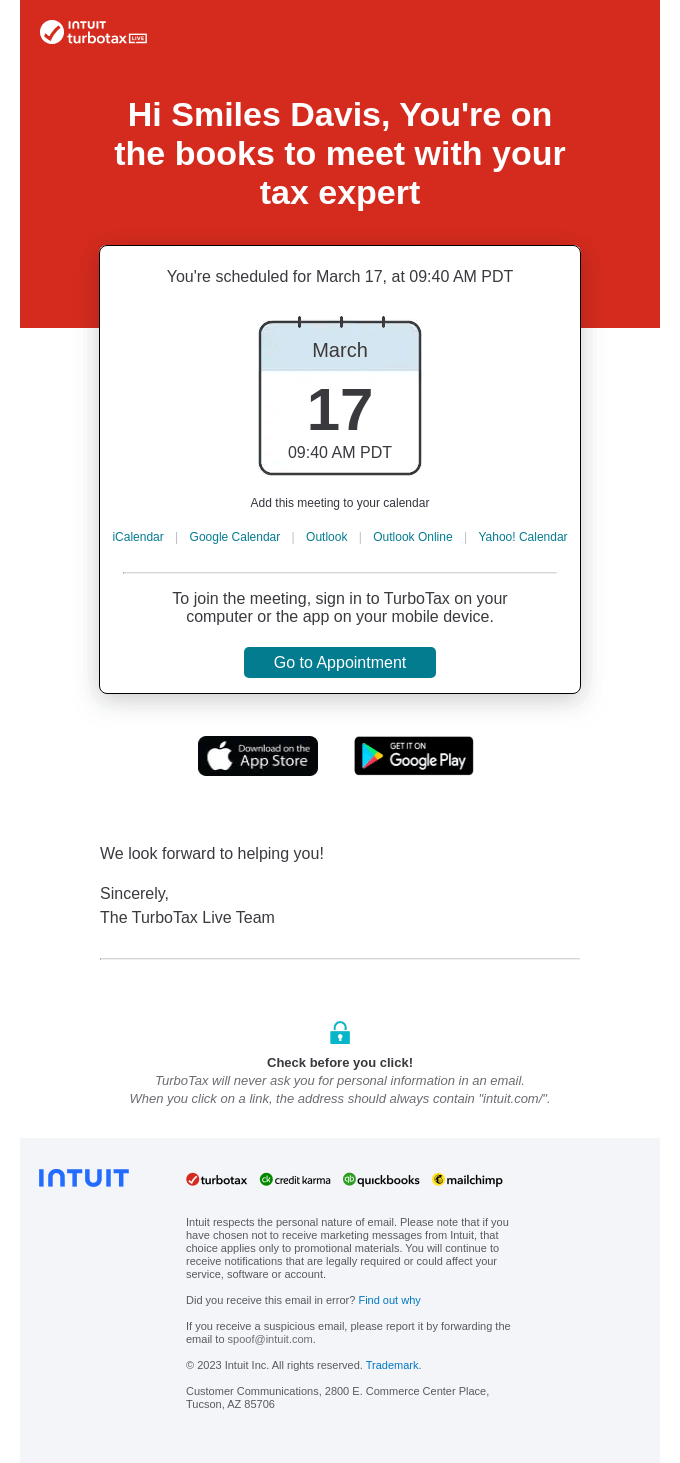
Someone signs up for a webinar, closes the email, and forgets about it three days later. An "Add to calendar" link solves this with a single click — the event goes straight into the schedule, no copying dates or typing anything by hand.
It's a win for the sender too: fewer no-shows, fewer "wait, when is our meeting" questions, and higher attendance.
What to prepare in advance
Before building the link, nail down four things:
- the event name
- the start and end date and time
- a description — one sentence about what the meeting is
- the location or a link to Zoom / another platform
A link for Google Calendar
Google Calendar accepts a link with parameters right in the URL. You don't need to create any files — just build the address using the template:
https://calendar.google.com/calendar/render?action=TEMPLATE&text=Название+события&dates=ГГГГММДДTЧЧММСС/ГГГГММДДTЧЧММСС&details=Описание+события&location=Место+или+ссылка
Spaces in the text get replaced with +. The date is written without separators: 20260610T160000 — that's June 10, 2026, 16:00:00.
Example of a finished link:
https://calendar.google.com/calendar/render?action=TEMPLATE&text=Вебинар+по+email-маркетингу&dates=20260610T160000/20260610T170000&details=Разбираем+триггерные+цепочки+и+сегментацию&location=Zoom+https://zoom.us/j/123456
Add this link to a button in your email — clicking it will immediately open Google's add-event form with the fields already filled in.
An .ics file for Outlook, Apple Calendar, and Yandex Calendar
For other calendars, you need an .ics file. You can create it in any text editor — Notepad on Windows or TextEdit on Mac.
Create a new file and paste in this text:
BEGIN:VCALENDARVERSION:2.0PRODID:-//Letteros//Email Calendar//RUBEGIN:VEVENTDTSTART:20260610T160000ZDTEND:20260610T170000ZSUMMARY:Вебинар по email-маркетингуDESCRIPTION:Разбираем триггерные цепочки и сегментациюLOCATION:Zoom https://zoom.us/j/123456END:VEVENTEND:VCALENDAR
Save the file with the .ics extension — for example webinar.ics. Important: in TextEdit on Mac, switch to plain text format before saving via Format → Make Plain Text, otherwise the file will save as .rtf and won't open as a calendar event.
The letter Z at the end of the time means UTC. If your event is in Moscow time (UTC+3), subtract three hours: 16:00 MSK = 13:00 UTC = 20260610T130000Z.
Upload the finished file to your site or the Letteros media library and add a link to it on your email's button.
How to add buttons to an email in Letteros
It's most convenient to give subscribers a choice — separate buttons for different calendars. People use different ones: some use Google, some use Apple, some use Yandex.
The standard set:
- Add to Google Calendar → a link with parameters
- Add to Outlook / Apple Calendar → a link to the .ics file
- Add to Yandex Calendar → a link to the .ics file
In Letteros, each of these buttons is added as a regular button with the appropriate URL. Three buttons in a row, short labels — that's all you need.
What to check before sending
Test the Google Calendar link right in your browser — if the form opens with the fields filled in, everything is set up correctly.
Download the .ics file and open it yourself — an event should appear with the correct date, time, and description. If the wrong calendar opens, or the file isn't recognized, check the extension and encoding (it should be UTF-8).
Always state the time explicitly. If your subscribers are in different time zones, use UTC with a Z, and also write the time in Moscow time as plain text in the email: "the webinar starts at 4:00 PM MSK."
What this looks like in a real email

Notice the structure: the date and time are placed prominently up top, with links to different calendars in a single row below. The recipient immediately sees when the event is and can add it to whichever calendar they use.
What a Final Booking Confirmation Email Looks Like for Service Businesses