
Static images get overlooked more and more often in a crowded inbox. GIF animation is a way to add interactivity without the cost of full video production. According to Russian CDP platforms, this format is still rare in email campaigns — which means competition for attention here is minimal.
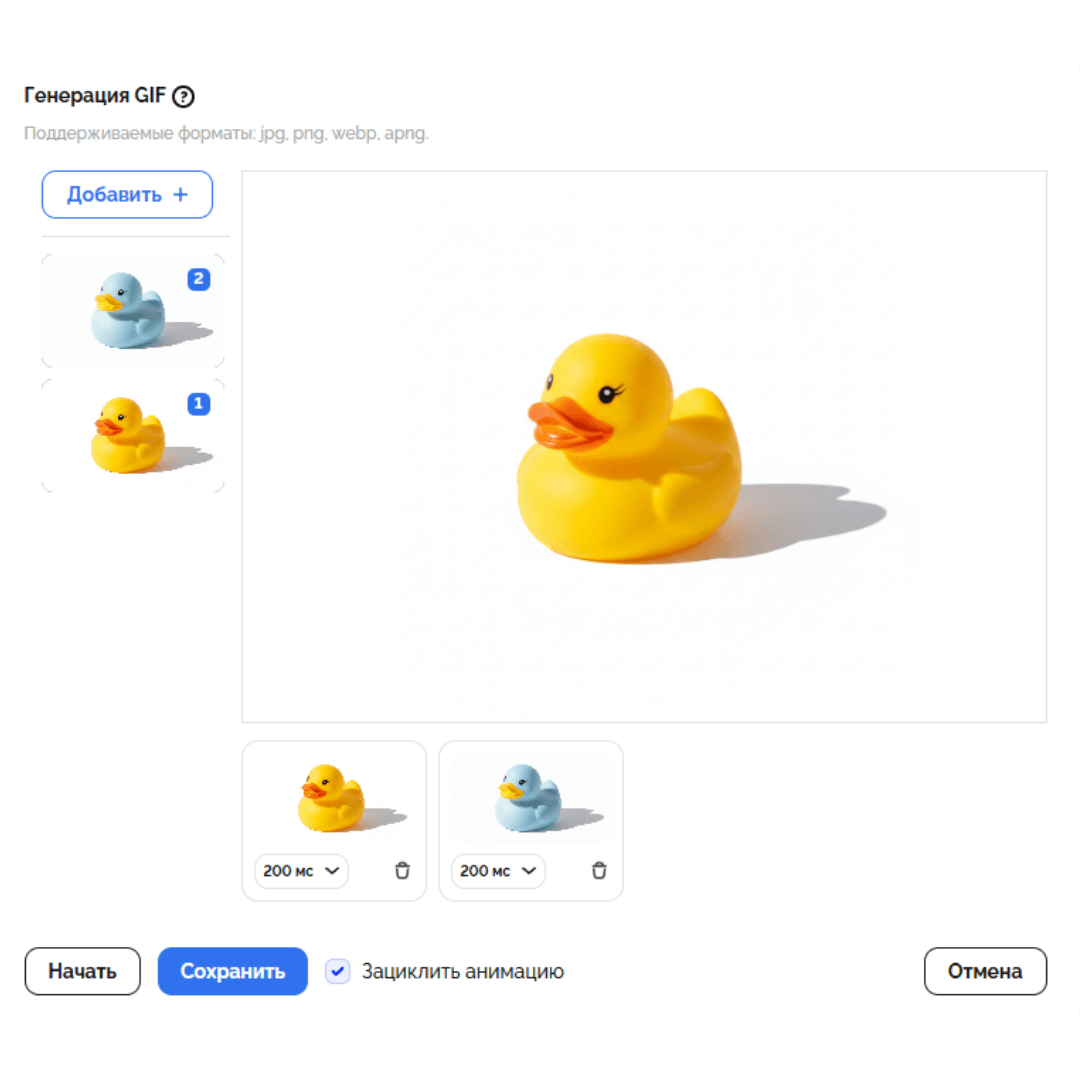
We'll explain how to build a GIF slideshow without Photoshop using Letteros' tools.
Why businesses need animation: 4 scenarios for growing conversion
Animated content is remembered 65% better than standard "text + photo" combos. Motion in a frame guides the user's attention and communicates a product's value faster.
- Showcasing a color palette. Instead of a series of near-identical photos — one GIF that cycles through colors. This saves valuable space in the email and clearly shows off your range.

- A 360° view. Stitching together 10–12 angles creates a sense of depth. Important for selling shoes, electronics, and jewelry.

- A visual walkthrough. Show how to assemble or use a product in 3 seconds. Removes the buyer's "this looks complicated" barrier.

- A "Before and After" comparison. Direct proof of effectiveness in beauty, renovation, or cleaning services.

3 ways to make a GIF from several photos for any task
1. Letteros' tools
The best option for professional campaigns and site content.
A free generator: upload photos in your browser window, adjust the speed, and download the result. No registration and no watermarks.

A built-in editor: lets you stitch the animation together right while coding the email. This saves up to 20 minutes when building each layout.

For more on how the built-in GIF editor works, read here.
2. Canva (Web or Mobile)
Good if you need to overlay text, a logo, or a "Sale" badge on the GIF.
- How it works: duplicate the design pages. Each page gets a new photo, but keeps the same element positions. This prevents text from "jumping" between frames.
- Export: set the display time (0.5–0.8 sec) and choose the GIF format.

3. CapCut (PC or smartphone)
Use it for smooth transitions and special filters.
- How it works: import your photos to the timeline and set the duration to 0.5 sec for all of them at once.
- Export: when saving, switch the file type to GIF. On the mobile version, make sure to remove the final title card with the app's logo.

Technical rules for quality animation
So your GIF doesn't look like amateur video from the 2000s, follow three rules:
- A static shot. Shoot on a tripod. Even slight camera shake creates an irritating "jittery" effect. Lighting should be consistent across all frames, or you'll get unpleasant flickering.
- Weight optimization. For email campaigns, the limit is 2–3 MB. The fewer frames and the narrower the width (we recommend up to 600 px), the faster the email loads.
- Lossless transfer. Don't send source files through messengers as regular photos — they get compressed and lose sharpness. Use cloud storage or send files uncompressed via Telegram.
Checklist before publishing:
- Infinite loop: the animation doesn't freeze on the last frame.
- An informative first frame: older versions of Outlook will only show this one. Make sure it presents the product.
- A pause at the end: make the last frame 0.3 sec longer so the viewer has time to register the outcome.
- Cleanliness: no watermarks from third-party services.
Which tool should you pick?
Goal | Tool |
|---|---|
Quickly stitch frames together without registering | Letteros GIF Generator |
Build a GIF while coding the email | Letteros' built-in editor |
Overlay text, frames, and design elements | Canva |
Use complex editing transitions | CapCut |
If you work with campaigns regularly, use Letteros' built-in tools. This lets you build professional emails with dynamic content in a single interface, without switching between third-party services.