
Static banners in newsletters clearly lose out to dynamic content. In 2026, unique clips built for specific tasks have become a required part of any strategy. Instead of spending hours searching stock footage sites, marketers now use AI to generate the video they need in a matter of minutes
Let's look at the tools and approaches that let you add quality animation to your newsletters through Letteros.
An overview of tools for generating video content
The generative video market has segmented. Which service you choose now depends on what you're animating.
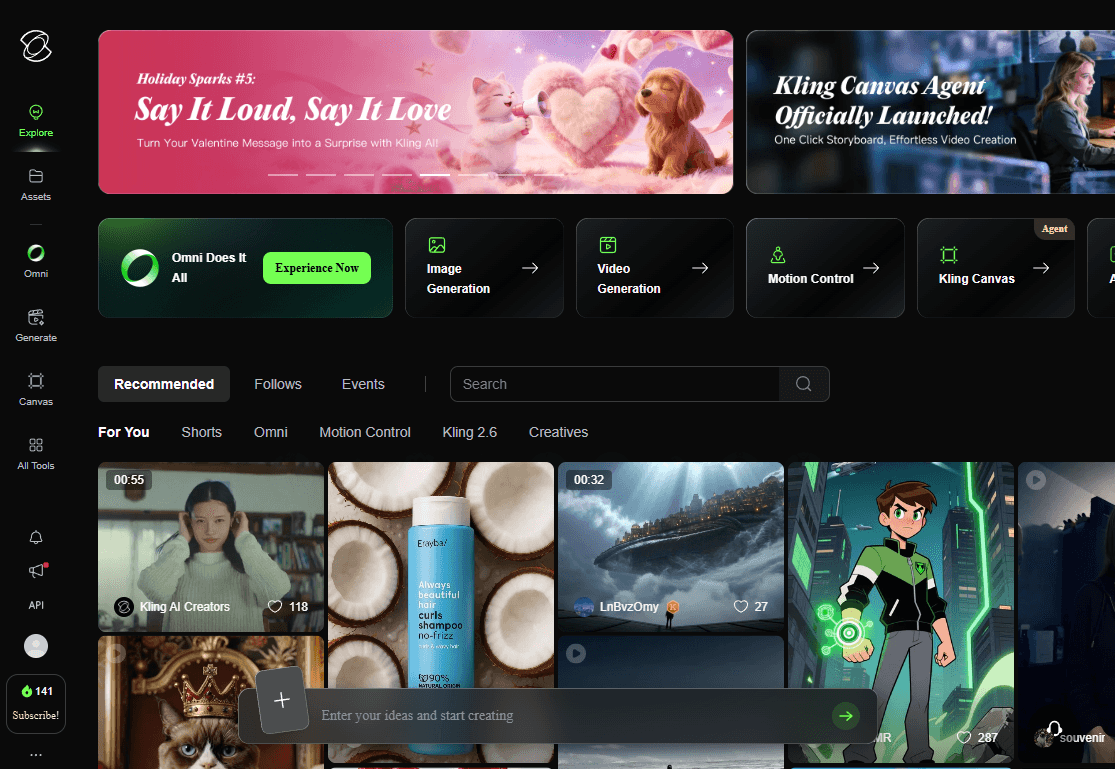
1. Kling AI

Best for: Product demos (e-commerce), cosmetics, gadgets.
The advantage: Flawlessly keeps an object's shape intact as the camera rotates around it. Renders glass highlights and reflections realistically, letting you build an ad clip from nothing more than a product photo.
Example prompt:
High-end commercial video, 360-degree camera orbit around a luxury perfume bottle, standing on black reflective marble. Golden sunlight flares, floating dust motes in bokeh background, cinematic studio lighting, hyper-realistic glass and liquid textures, 4k, smooth motion.

2. Hailuo AI

Best for: Lifestyle banners and lifelike faces in newsletters.
The advantage: The highest frame rate and skin detail on the market. Lets you convey natural emotion without the "uncanny valley" effect.
Example prompt:
A close-up portrait of a young woman laughing naturally. Her hair is blowing slightly in the wind, hyper-realistic skin texture, visible pores and eyelashes. High frame rate, smooth 60fps motion, soft sunset lighting, bokeh background, commercial fashion style.

3. Pika Art

Best for: "Endless" GIFs for backgrounds or accents.
The advantage: The Pikaframes feature lets you set the first and last frames, creating a perfectly seamless loop with no jumps.
Example prompt:
Hot coffee in a ceramic cup, swirling steam rising slowly, cozy cafe lighting, macro cinematic shot, seamless loop.

4. Runway Gen-4

Best for: Dynamic banners that spotlight product details
The advantage: Director Mode gives you a "remote control" over the camera. You decide exactly where the viewer's eye goes, creating a cinematic push-in on the detail you want.
Example prompt:
Macro cinematic push-in shot (zoom-in) starting from a wide view of a modern designer chair into the fine texture of the leather fabric. Soft natural sunlight from a window, floating dust motes, realistic shadows, architectural visualization style, 8k, highly detailed.

5. Sora

Best for: Building complex, highly detailed scenes from scratch.
The advantage: The technology is now available for free in the Bing mobile app. Ideal for mimicking a high-end video production with rich atmospheric detail.
Example prompt:
A sleek, white cosmetic cream tube slowly rotates on a polished, obsidian-black surface that reflects the soft, ambient glow of a distant, out-of-focus window. Gentle, almost imperceptible steam or mist subtly rises from around the base of the tube, catching the light. The reflection of the tube is perfectly mirrored on the wet-look surface. Soft, cinematic lighting creates dramatic yet elegant highlights and shadows. A very subtle, slow-motion effect on the rotation. Shallow depth of field, 8k, hyper-realistic, high-detail, commercial product photography, film grain.

6. Kandinsky (in GigaChat)

Best for: Animated logos and quick backgrounds for promotions.
The advantage: Its Telegram bot integration lets you generate 4-second clips in minutes. Minimal setup, maximum speed for tight deadlines.
Example prompt:
Animated banner: on a white background, the bright red word "SALE" pulses and glows. Gold confetti and sparks scatter around it. High resolution, vibrant colors, dynamic.

7. Shedevrum

Best for: Atmospheric lifestyle content and art effects.
The advantage: The model handles textures and lighting beautifully. Great for bringing a sketch to life or adding cozy light animation to an interior shot.
Example prompt:
A view from a window onto a snow-covered garden, a cup of hot coffee sitting on the windowsill. Outside the glass, thick, fluffy snowflakes fall slowly and silently. A cozy hygge atmosphere, soft focus, highly detailed.

Generating GIFs inside Letteros
If you don't need elaborate cinematic effects, you can create a working GIF without ever leaving the Letteros editor. It's faster, and the result is guaranteed to be optimized for email client requirements.

How it works:
- Frame generation: Use Letteros's built-in AI to create 2–3 images of a product in different colors or angles.
- Assembly: Click the image element and select the "Generate GIF" feature.
- Timing settings: In the window that opens (see the screenshot), you can set the duration of each frame.
Timing tip: For a smooth transition between clothing colors (as in our hoodie example), an interval of 500 ms or 700 ms works best. If you want to draw attention to a specific detail, choose 1000 ms.
- Looping: Don't forget to check the "Loop animation" box, so the transition repeats endlessly.
Simple Russian-language prompts for the Letteros generator:
To make your hoodie GIF look professional, use these prompt combinations:
- Frame 1: "A minimalist dark gray hoodie, front view, studio lighting, plain light background."
- Frame 2: "A minimalist beige hoodie, front view, studio lighting, plain light background."
- Frame 3: "A minimalist khaki hoodie, front view, studio lighting, plain light background."
Important: Keep the background and lighting description identical in every prompt, so only the product's color "jumps" between frames, not the whole image.
Why is this convenient?
- No third-party services: The whole cycle, from generation to coding, happens in one window.
- Automatic file size: The system automatically picks the right compression so your GIF weighs under 2.5 MB.
Flexibility: You can swap out a frame or change the animation speed at any time, right in the builder.
Technique: working with prompts
In 2026, AI understands "cinematographer language" best. Instead of subjective adjectives ("beautiful," "vivid"), use technical parameters.
The formula for the perfect prompt: [Subject] + [Action] + [Environment] + [Camera/lighting parameters]
The formula for the perfect prompt
[Subject] + [Action] + [Environment] + [Camera/lighting parameters]
Tips for better quality:
To make your prompts in Bing (Sora), Hailuo or Luma work more effectively:
- Control the camera: Add phrases like slow pan, tracking shot (the camera follows the subject), or cinematic push-in.
- Leave room for text: If you're planning to overlay an offer in Letteros, add copy space on the left or minimalist background to your prompt.
- Technical parameters: The optimal prompt length is 20–40 words. Avoid vague adjectives ("beautiful") and use technical ones instead ("8k," "highly detailed").
Technical details: preparing to send
For the animation in an email to look sharp and load quickly, stick to specific parameters during generation and coding.
- Timing and FPS: It's best to keep GIFs to 2–3 seconds at 12–15 frames per second. This keeps the motion smooth without letting the file get too heavy for mail services.
- Looping: To avoid abrupt jumps when the video repeats, add seamless loop or perfectly looped to your prompt.
- Quality settings: If the motion comes out too jerky, use the —motion 3 modifier (in Runway) or the word slow-motion. To boost detail, add high-end 3D render or 8k.
GIF pre-upload checklist
- The animation is no longer than 3 seconds.
- The motion loops smoothly, with no abrupt jumps at the start or end.
- The file is under 2.5 MB, so it opens for everyone without delays.
- The GIF's first frame is informative (if the email client doesn't load the animation, the user will see this frame as a regular image).
- There are no visual defects in the frame — faces or logos don't get distorted during motion.
Upload finished files straight into Letteros: the service automatically optimizes the GIF's file size so it displays correctly in email clients. If the animation needs more work, the platform has a built-in editor — you can stitch a GIF together from separate images, adjust the frame rate, or change the speed. Using dynamic blocks like this in trigger emails (a cart reminder, for example) boosts click-through rate by 15–20% on average.
What to do with a GIF once it's ready: add it to your email in 2 steps
Step 1. Upload the GIF to Letteros
There are two ways to do this, depending on where you created the animation.
If you built the GIF in Letteros's built-in generator, the animation is already in the editor. The system has automatically optimized the file size for email client requirements — nothing else to upload.
If you created it in a third-party service, open the email in the Letteros editor, click the image block, and upload the file using the "Replace" button. Letteros will automatically check and optimize the GIF's file size.
Before adding it, make sure: the file weighs no more than 2.5 MB, and the first frame is informative and makes sense without the animation — that's what Outlook users will see.
Step 2. Insert the GIF into the email and check it
Drag the image block to the right spot in the email. Click the "◑" button in the bottom panel of the editor to check how the GIF looks in dark mode. Then click the paper-plane icon in the top-right corner and send a test email to yourself. Open it in Gmail and Outlook to confirm the animation plays correctly and the first frame looks fine without the animation.