
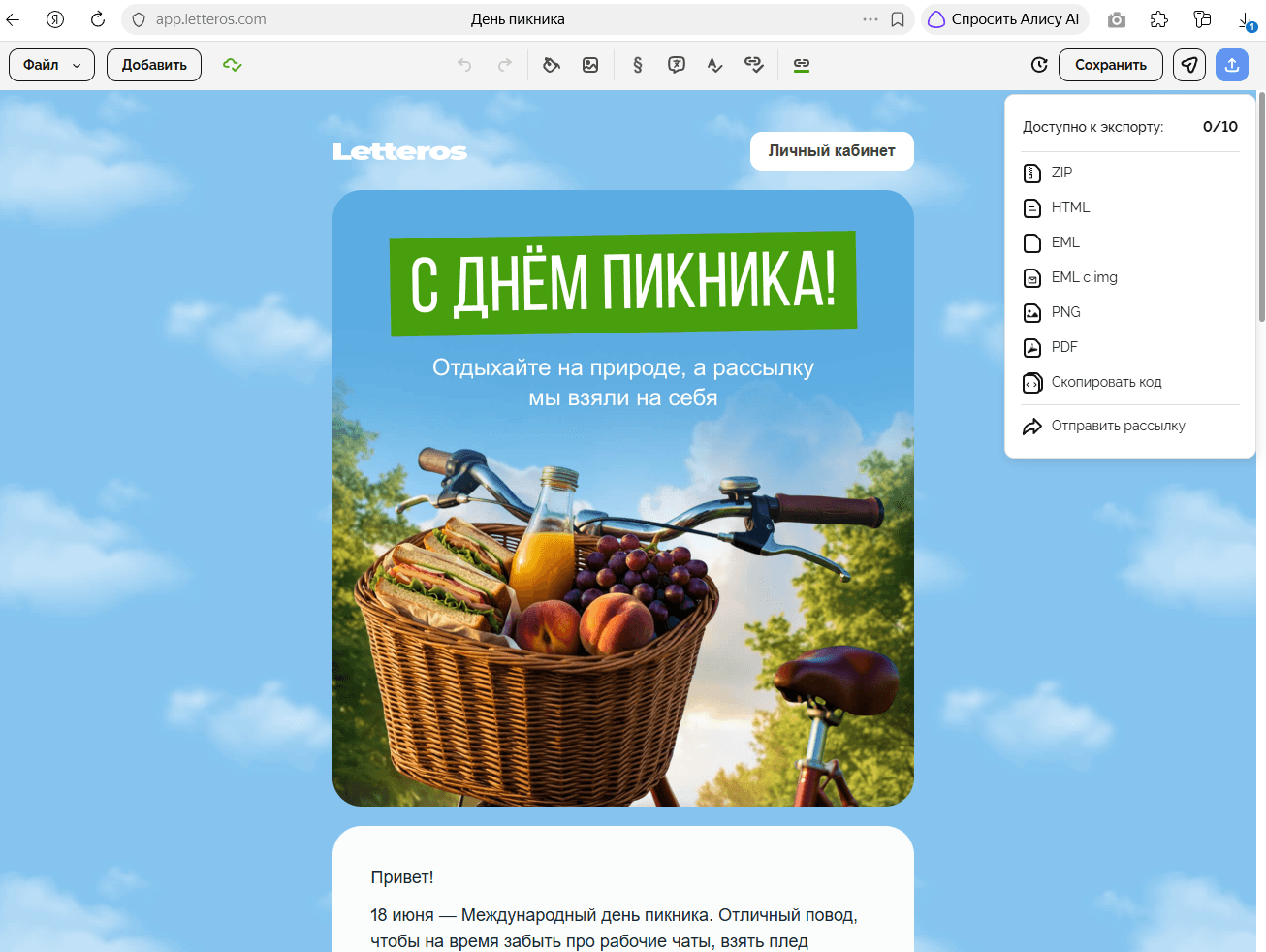
Building an email in the editor is only half the job. After that, you need to hand it off to a sending service, save it for the archive, or pass it to a developer for further work. That's what export is for. Let's break down which formats are used, how they differ, and when to choose each one.
Why export matters
An email editor and a sending service are often different tools. A designer builds the template in the editor, a marketer uploads it to an ESP to send. Without export, this chain doesn't work.
Besides sending it to an ESP, you need export for archiving templates, getting a client or manager's sign-off on an email, handing it off to a developer for further work, or publishing the email as a web version.
HTML
The primary format for email campaigns. An HTML file contains all of the email's markup: structure, styles, links, and images.
When to use it. For uploading to any ESP. Every sending service accepts HTML. It's a universal format that works everywhere.
What's important to know. Email HTML is different from regular website HTML. You can't use JavaScript in emails, many CSS properties aren't supported by email clients, and markup is built on tables. If the editor exports correct email HTML, a developer won't need to fix anything.
Images in HTML. When exporting, images can be embedded in the code as base64 or hosted on an external server. The second option is better: an email with externally hosted images is smaller and loads faster. Base64 bloats the email's size and raises the risk of landing in spam.
ZIP archive
An HTML file along with an image folder, packed into an archive.
When to use it. When you need to hand off an email with local images — for example, to a developer for further work, or to an ESP that accepts archives. Some platforms automatically unzip files and upload images to their own servers when you upload a ZIP.
What's important to know. If images are stored locally in the archive folder, the email won't display correctly until those files are uploaded to a server. Before sending to an ESP, make sure the images are uploaded and the links in the code are updated.
The email is saved as a static document. Links are clickable, but interactivity is limited.
When to use it. For getting sign-off from a client or manager — when you need to show what the email looks like without the technical details. A PDF is convenient to email or print.
What's important to know. A PDF doesn't reflect how the email actually renders in an email client. Dark theme, mobile responsiveness, font behavior — none of that shows up in a PDF. For final sign-off before sending, it's better to use a screenshot or a test send.
PNG or JPG
A screenshot of the email as an image.
When to use it. For presentations, case studies, and reports — when you need to show what the email looks like without letting anyone edit it. Also handy for archiving visual examples.
What's important to know. An image doesn't capture the mobile version, dark theme, or interactive elements. For a case study or portfolio, it's worth exporting multiple versions: desktop and mobile.
Direct export to an ESP
Some editors, including Letteros, let you send an email directly to your sending service through an integration — no manual downloading or uploading files needed.
When to use it. When you want to save time and rule out mistakes from manual uploading. A direct integration guarantees the email is sent in the correct format without extra steps.
What's important to know. Before using it, you need to set up the integration — connect your ESP in the editor's settings. After that, exporting takes just a few seconds.
How to choose a format
Here's a quick rundown of when to use what.
Uploading to an ESP to send — HTML or a direct integration.
Handing off to a developer for further work — a ZIP with images.
Getting sign-off from a client or manager — PDF or PNG.
Archiving or building a case study — PNG with desktop and mobile versions.

Common export mistakes
Images aren't uploaded to a server. If you export HTML with local images and upload it to an ESP without uploading the images too, recipients will see empty blocks. Before exporting, make sure all images are hosted externally.
Incorrect encoding. If the HTML file isn't saved in UTF-8, Cyrillic text in the email can display as garbled characters. This is especially relevant when manually editing the code in a text editor.
Broken links after uploading. With some ESP upload methods, relative links in the code stop working. Check every link in a test send before sending.
HTML that's too heavy. Gmail clips emails heavier than 102 KB. If images are embedded in the HTML as base64, the file quickly exceeds that limit. Use external image links instead.
The bottom line
The export format depends on the task. HTML — for sending. ZIP — for handing off with images. PDF and PNG — for sign-off and archiving. A direct ESP integration — when speed matters and there's no time for manual uploading.
Read also: