
Updated: In 2026, GPA technology remains a key tool, but now it works in close conjunction with security protocols (BIMI and DMARC)
In February 2019, Google announced the launch of a new Promotions tab in Gmail (GPA).
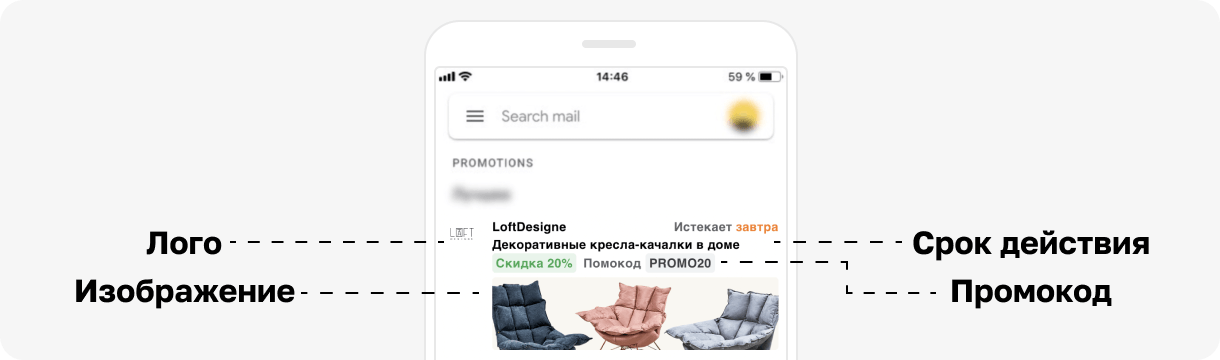
For email marketers, it was a small celebration: emails with valuable offers would now look cooler. Subscribers would see your brand name, promotional products, previews, discounts, and sale dates.
Here's what it looks like in practice:

What's the benefit of GPA? Customers are more likely to open your email. More active recipients = more email opens = more sales. Of course, only if the offer is relevant to the subscriber.
What you need to know about GPA
In the Gmail mobile app, the «Promotions» section has a top emails list. Your email can rise to the top of the list if Gmail considers it a «Top Deal». Thanks to Gmail annotations, emails are more likely to make it into «Top Deals».
Important: To help Gmail choose your email for the «Top» list more often, set up BIMI. If your domain has an official blue checkmark and logo, the algorithms' trust in your annotations increases significantly.
Being at the top is great, but algorithms decide everything. Follow these conditions to create a good GPA:
- good ESP reputation;
- HTML format;
- mass mailing — there's no exact number of recipients required: the more, the better;
- the recipient has the «Promotions» folder — category-based email sorting is enabled;
- your emails land in «Promotions»;
- a relevant offer — short, concise, without clickbait or aggressive CTAs. You can add a promo code and the offer's expiration date;
- a high-quality image: it shouldn't contain only text (no GIF, no WEBP). Dimensions — 138×538 px. An image of a different size will also pass, but Gmail will crop it to these dimensions.
Design tip (relevant for 2026): Check the banner's readability in dark mode. Use a transparent background for the logo (PNG format) and avoid overly thin dark fonts on the banner itself — they can «disappear» against the black background of a smartphone interface.
Important:
- Gmail annotations only work on mobile devices;
- GPA is free;
- there's no way to track the effectiveness of Gmail annotations;
- Gmail will only display your annotations if the email makes it into «Top Deals».
Link check: All image links within the code (logo and banner) must start with https://. Since 2025, Google has completely blocked content display over unsecured http.
How to create annotations in Gmail
Method 1.
Annotations can be added via JSON-LD code in a script tag in the email's HTML header. What to add? For example, offer details: discount codes, offer type, or promotional image.
Useful resources: A list of properties that can be included in the markup can be found in Google's «Tab Help» documentation.
Sample code you can copy for testing:
<!DOCTYPE html PUBLIC "-//W3C//DTD HTML 4.01//EN"><html><head><script type="application/ld+json">[{"@context": "http://schema.org/","@type": "Organization",// WARNING: Before sending email, either point the logo// at your own image or delete the logo annotation.//// If showing a logo, we recommend using an https URL.// It's not a requirement today, but may be in the future."logo": "https://www.gstatic.com/images/branding/product/1x/googleg_48dp.png"},{"@context": "http://schema.org/","@type": "EmailMessage",// Use this optional alternative subject line to avoid duplicate text// between the subject, deal badge, and discount code."subjectLine": "[Important] Please add subject line in annotation"},{"@context": "http://schema.org/","@type": "DiscountOffer",// Describe your discount, this will be shown as a badge (eg "25% off" or "free shipping")"description": "20% off","discountCode": "PROMO","availabilityStarts": "2023-02-01T02:01:01-08:00","availabilityEnds": "2023-02-04T02:01:01-08:00"}]</script></head><body><p>Email Body</p><p>Line 2</p></body></html>
The script method is less preferred: some ESPs strip it out to protect users' confidential data.
Method 2.
Using microdata markup. The microdata code is added to the email body, usually before the closing </body> tag.
So how do you actually measure the result?
Use an exclusive promo code. Specify a unique word in the discountCode field (for example, GMAIL_SALE). This way, you'll see in your CRM how many purchases came specifically from clicking the annotation, rather than the button inside the email.
Gmail Promotions Annotations module
The Gmail Promotions Annotations module is available in the current service and can be found under «System Elements».
How does it work?
When you add the module to an email, you set the promotion parameters in the editor: company logo, subject, banner, discount amount and promo code, expiration date.
When exported, special markup for Gmail Promotions Annotations appears in the email code.
- Create and open an email, go to the «System Elements» section in the sidebar
- Select the «Gmail Promotions Annotations» template from the list
- Preview how your email will look
- Upload your logo image
- Change the sender name
- Add a description for the promotion
- Replace the promotion image with a current one
Final 2026 checklist:
- The JSON-LD code is validated via Google's Rich Results Test (Playground).
- The date in availabilityEnds is current (not in the past).
- Logo and banner are served over HTTPS.
- DMARC is configured on the domain (required for annotations to display).